Recommended
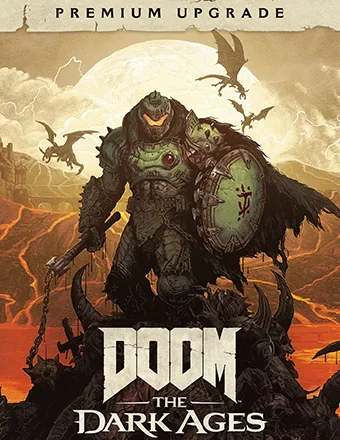
DOOM: The Dark Ages - Premium Edition | RePack | Build 20760608

DOOM: The Dark Ages - Premium Edition | RePack | Build 20760608

/ Views:  54 214 / Comments: 1

Release Date: 2025

Genre: Action

Developer: id Software

Publisher: Bethesda Softworks

Game version: Build 20760608

Release type: RePack

Interface language: English, Russian, Multi

Audio language: English

Мedicine: Included (Hypervisor Bypass)


System requirements


Operation system: Windows 10, 11 64-Bit

Processor: AMD Ryzen 7 3700X or better, or Intel Core i7 10700K or better

Memory: 16 GB

Graphics: NVIDIA RTX 2060 SUPER or better, AMD RX 6600 or better

Free hard disk space: 83.42 GB


About This Game


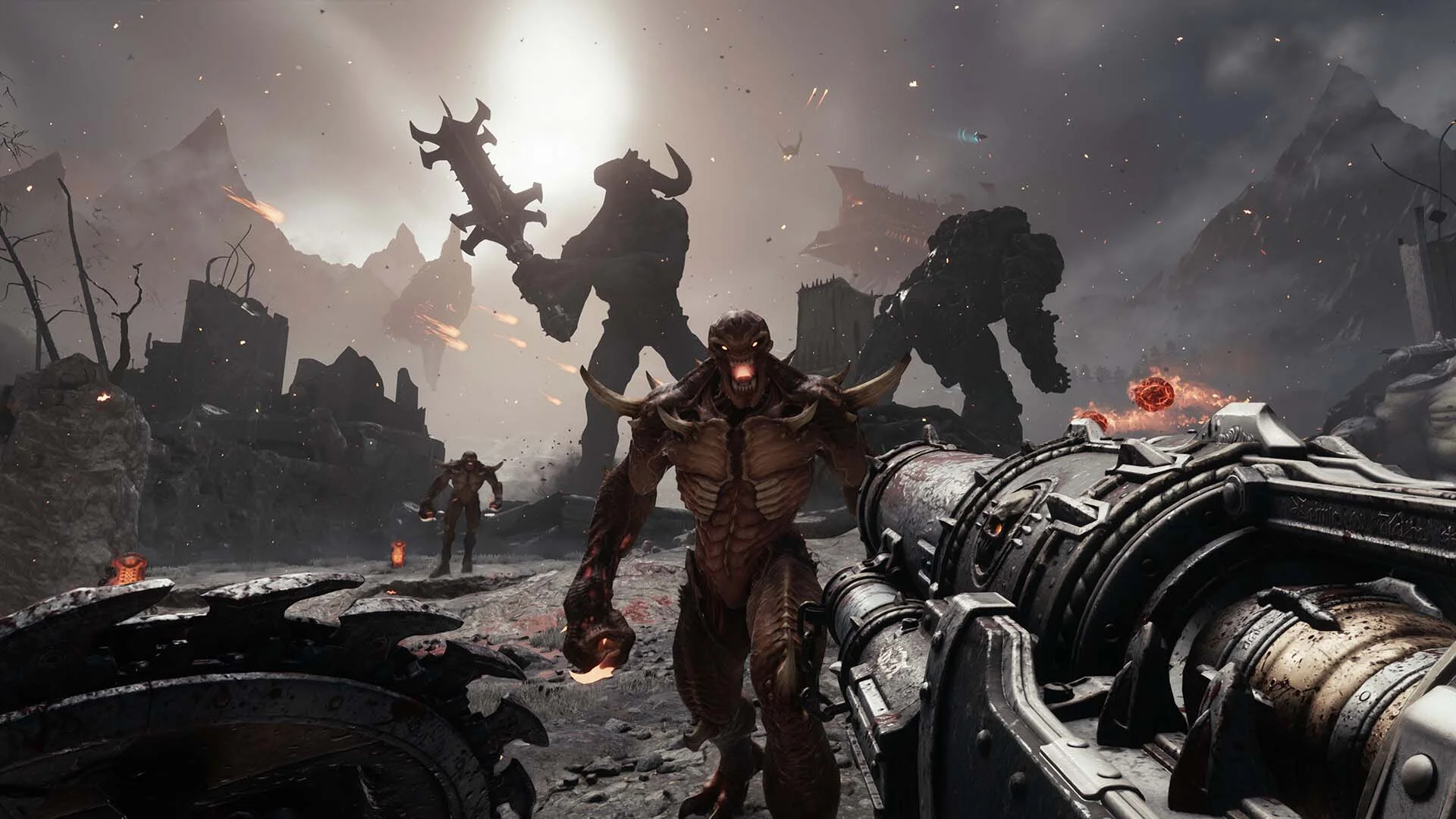
Doom: The Dark Ages takes you back before the events of the acclaimed Doom (2016) and Doom Eternal, unfolding an epic cinematic tale befitting the Doom Slayer's legendary saga. This third chapter in the modern Doom series thrusts players into the blood-soaked boots of the Doom Slayer, battling a fierce and unseen medieval war against the forces of Hell. Dive into a dark fantasy and sci-fi single-player adventure that delivers the intense combat and jaw-dropping visuals that the Doom franchise is celebrated for, all powered by the cutting-edge idTech engine. As the ultimate weapon of gods and kings, unleash havoc with iconic favorites like the Super Shotgun, alongside new devastating tools of destruction such as the versatile Shield Saw. Face the demon-infested battlefields with the brutal, gritty combat that made the original Doom a legend. Experience a gripping narrative filled with the Doom Slayer's fury in this cinematic, action-packed journey. As the super weapon of gods and kings, the Doom Slayer must fend off demon hordes whose leader aims to eliminate the Slayer and become the sole figure of dread. Witness the birth of a legend as the Slayer confronts Hell's forces, turning the tide of an epic war. Embark on a quest to obliterate Hell's legions, traversing never-before-seen realms. In every shadow of ruined castles, epic battlefields, dark forests, ancient hellscapes, and beyond, mysteries, challenges, and rewards await. Armed with the fearsome Shield Saw, carve through a world of darkness and secrets in id's most expansive levels yet.
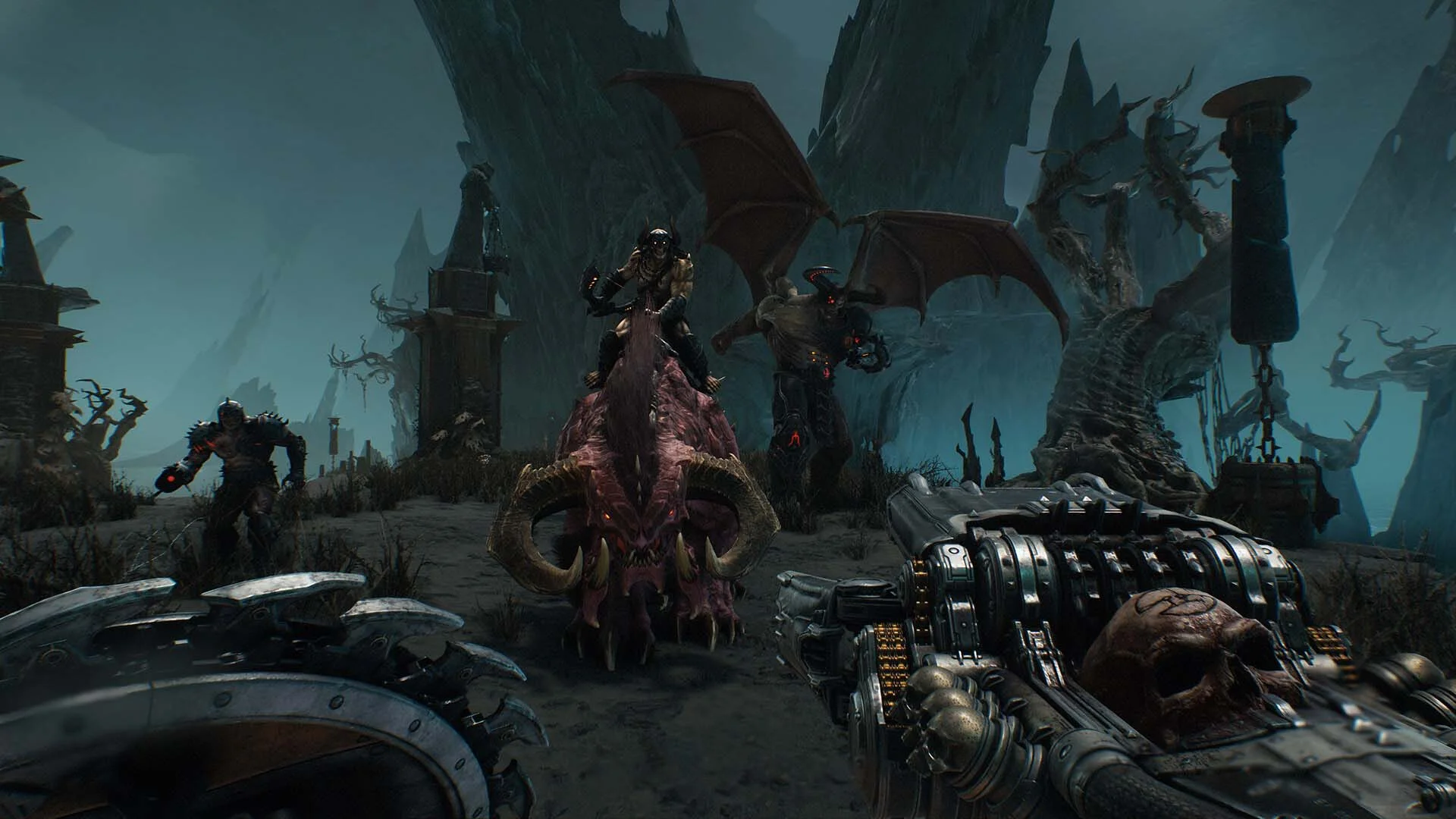
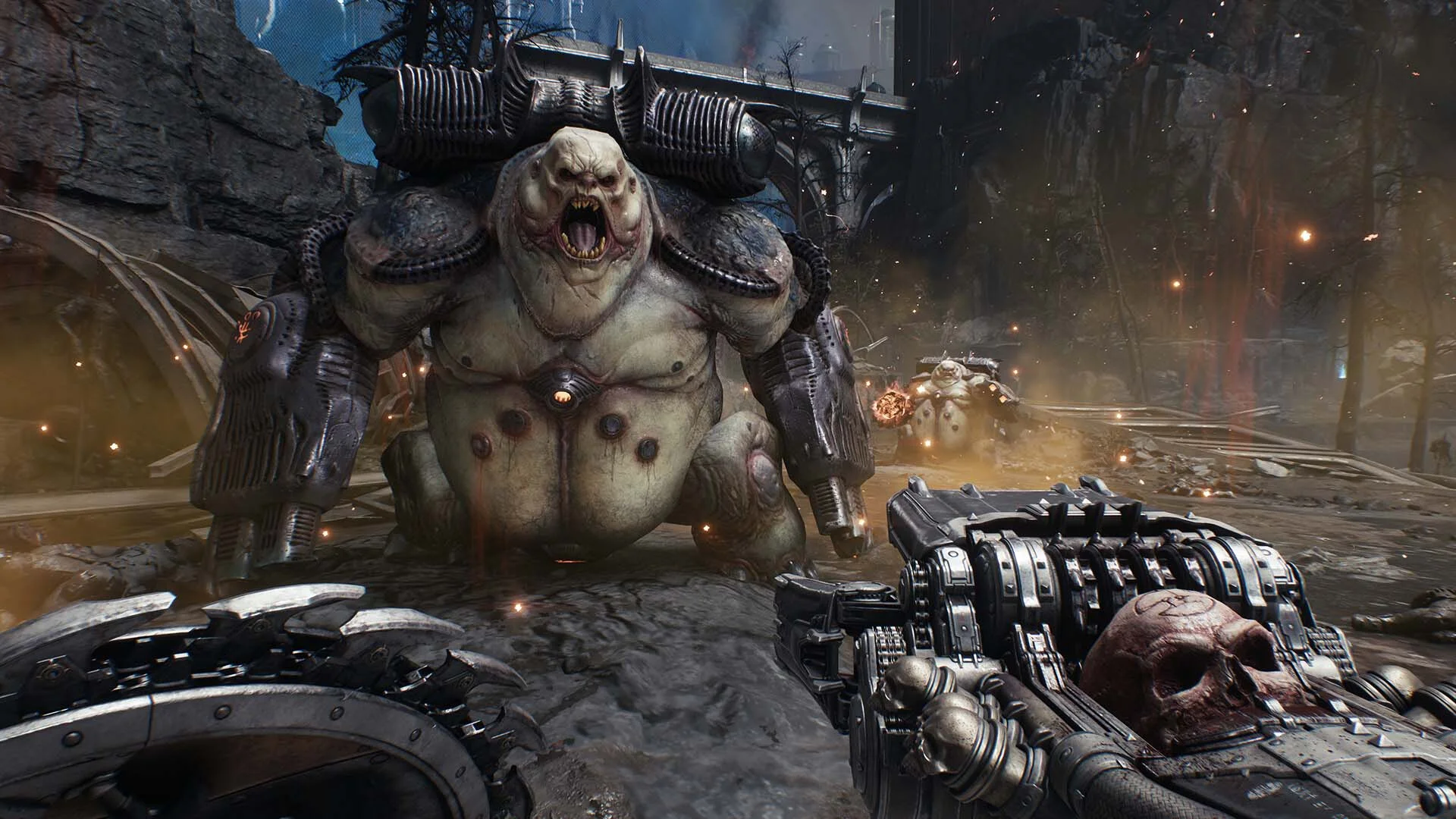
Screenshots Trailer Release Features DLCs


  • Nothing is cut / nothing is recoded;
  • Installation time depends on the computer's power;
  • Language selection in the game settings, during installation, or in the *.ini file in the game folder.
  • DOOM: The Dark Ages - Premium Upgrade
Comments 1
Admin
0
Admin2 March 2026 23:12

///////////////////ENGLISH//////////////////////////////

1. Disable your antivirus and Windows Defender, add the game folder to the exclusions
2. All files are already in the game folder. A backup copy is in the _bypass.rar archive in the game folder, in case the antivirus has deleted them
3. Prepare the system to launch games using a hypervisor:
- Reboot and enter the BIOS. Disable Secure Boot and enable virtualization (VT-x on Intel, SVM or AMD-V on AMD).
- Boot into the operating system.
- Run Command Prompt as Administrator and enter: bcdedit /set testsigning on (After rebooting, you will see a “Test Mode” message in the bottom-right corner of the desktop — this is normal.)
- Run Command Prompt as Administrator again and enter: bcdedit /set hypervisorlaunchtype off
- Reboot.
- At this point, the system preparation for launching games using this type of bypass is complete (this only needs to be done once).
4. Open the Command Prompt as an administrator and enter the command: sc create denuvo type= kernel start= demand binPath= "D:\DOOM The Dark Ages\SimpleSvm.sys"  (Just make sure to specify your own path to the SimpleSvm.sys file for AMD. For Intel, use: sc create denuvo type= kernel start= demand binPath= "D:\DOOM The Dark Ages\hyperkd.sys)
- If it needs to be recreated (for example, if the path was incorrect), first delete it:  command: sc delete denuvo  then repeat steps 4 and 5.
5. In the same Command Prompt window, enter: sc start denuvo (After finishing the game, you can stop the service by entering: sc stop denuvo.)
6. Launch the game using DOOMTheDarkAges.exe located in game folder

If the game still doesn’t start after preparing the system, the following may help:
- Open the command prompt as an administrator and enter the command bcdedit.exe /set nointegritychecks on
- Disable NX Mode in the BIOS (if your BIOS has this option)

///////////////////РУССКИЙ//////////////////////////////

1. Отключите антивирус и Windows Defender, добавьте папку игры в исключения
2. Все файлы уже в папке игры, резервная копия в архиве _bypass.rar в папке игры, на случай если антивирус удалил
3. Подготавливаем систему к запуску игр с использованием гипервизора:
- Перезагружаемся и заходим в Bios, выключаем Secure Boot, а так же включаем виртуализацию (VT-x на Intel, SVM или AMD-V на AMD)
- Грузимся в систему
- Запускаем командную строку от имени администратора, вводим команду bcdedit /set testsigning on (после перезагрузки справа внизу на раб. столе появится надпись "тестовая версия" или как-то так, это нормально)
- Запускаем командную строку от имени администратора, вводим команду bcdedit /set hypervisorlaunchtype off
- Перезагружаемся
- На этом, в целом, подготовка системы к запуску игр с подобным обходом закончена (она делается разово)
4. Запускаем командную строку от имени администратора, вводим команду sc create denuvo type= kernel start= demand binPath= "D:\DOOM The Dark Ages\SimpleSvm.sys (только указывайте ваш путь до файла SimpleSvm.sys (для AMD) или же sc create denuvo type= kernel start= demand binPath= "D:\DOOM The Dark Ages\hyperkd.sys)
- Если нужно пересоздать (например, путь был неправильный) Сначала удалить: вводим команду sc delete denuvo далее повторить пункт 4 и 5
5. В той же командной строке вводим команду sc start denuvo (после окончания игры можете ввести в командной строке команду sc stop denuvo чтобы остановить сервис)
6. Запускаем игру с файла DOOMTheDarkAges.exe из папки игры

Если у вас после подготовки системы игра всё равно не запускается, то может помочь следующее:
- Запускаем командную строку от имени администратора, вводим команду bcdedit.exe /set nointegritychecks on
- Выключаем в Bios NX Mode (если у вас таковой пункт имеется)

Information

The ability to comment on this publication has been disabled.